


In this article we explain the basics of a hack to get the Mevo camera working with OBS Studio. Mevo is a clever little camera controlled by a mobile app that allows you to create live streams and recordings with a similar to a multi-camera setup. Mevo is a closed platform and is only intended to work with their own app on iOS, Android or via Livestream Producer desktop switching software (currently $75 per month). In September 2018 the Mevo app was updated to include live streaming to any RTMP destination rather than just pre-set social media platforms or Vimeo/Livestream.com.
Note – loads of updates to Mevo cameras and software. See notes below. In short you probably don’t need the hack nowadays. There are official wired and wireless options available for streaming with computer software.
Updates March 2020
We’re seeing a lot of interest in this article from around the world so it seemed like a good idea to check the hack was still working. We can confirm it’s working perfectly OBS v25 released a few days ago.
There’s a new Mevo camera shipping soon called Mevo Start. We have one on pre-order and will test it with the hack ASAP. However, the new Mevo Start will include NewTek NDI|HX which should work fine with OBS and other streaming software once they’ve ironed out any Beta release snags.
Update 2023 – Mevo Start users should use NDI for OBS, vMix etc to bring in the cameras. Mevo have also released a wireless webcam app for Windows and Mac – it supports the OG Mevo as well as the Start. Works in Zoom etc. The Multicam app also has webcam out so you have that option too.
Alongside the Mevo Start is a new multi-camera feature which should enable multiple Mevo devices including the original Mevo, Mevo+ and Mevo Start to be controlled and switched in the Android/iOS app.
Note – when we originally wrote this Mevo was part of LiveStream which itself had been bought out by Vimeo. Max Haot, the founder of Livestream, has bought the Mevo business back from Vimeo/Livestream. We quite like the Mevo camera and look forward to seeing what future developments bring.
Further Edit March 2020 – Check out my new post about a much easier, low cost hack to get Mevo cameras working with OBS Studio. I’ve tested it – it works great. Thanks to Michael Garanin for making the app!

It’s worth pointing out that Vimeo does offer it’s own lower-cost Mevo only plans that include the ability to add graphics directly from within the app. This is arguably the most sensible choice if you want a more stable and better quality option. If, however you are a keen enthusiast willing to experiment ‘just for fun’ then we hope this article is helpful.
Local RTMP Server
Be prepared for a lot of faffing around and checking of settings etc. This sort of thing rarely works first time and could possibly drive you mad trying. There’s absolutely no technical support offered or implied here so you are on your own if you get stuck.
There are some pointers in the comments below that may help. If you’re still struggling then see this new Easy Hack for Mevo and OBS Studio.
We decided to find out if we could use the RTMP feature to get live footage from the Mevo into Open Broadcaster Software (OBS Studio). We installed a local RTMP server from Mist on the same computer as OBS. Point the Mevo RTMP settings to the Mist server (tutorial to follow). Then add the local stream URL as a VLC source to a scene in OBS.
You may need to re-launch OBS to refresh the inputs if the Mevo doesn’t appear. Once you have the Mevo feed in OBS you can continue to use the Mevo app as normal to switch Mevo scenes. Everything you do inside the Mevo app is transmitted locally to OBS. Once inside OBS you can add graphics/logos etc and stream it elsewhere.
This method may also work with other streaming applications which support a URL input or VLC source. It makes the Mevo more flexible without the expense of an additional subscription. However, it’s not perfect if your network isn’t great and can be tricky to set up.
If you’re a Mac user then have a look at Dennis Jenders article.
Installing and setting up Mist RTMP server
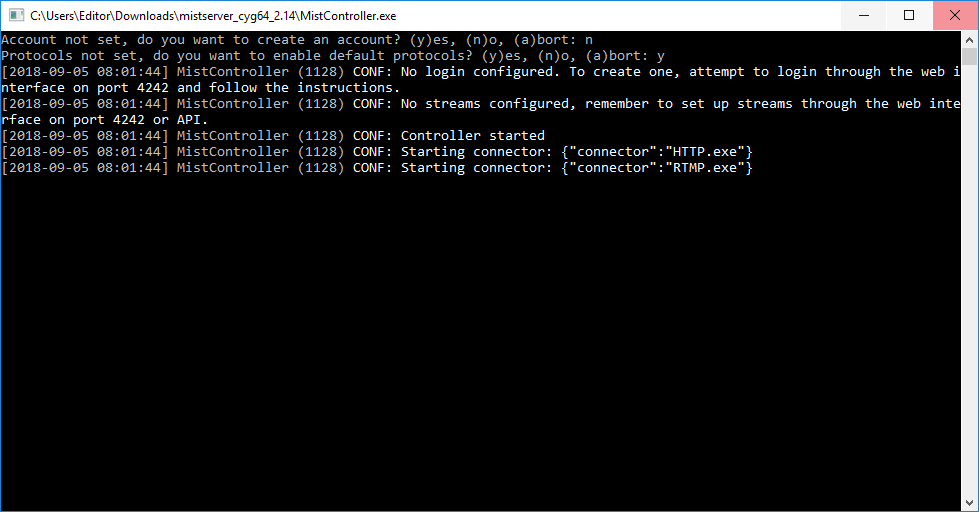
Download and run MistServer. You do not need to setup and account at this stage – see screenshot below. Enable default protocols.
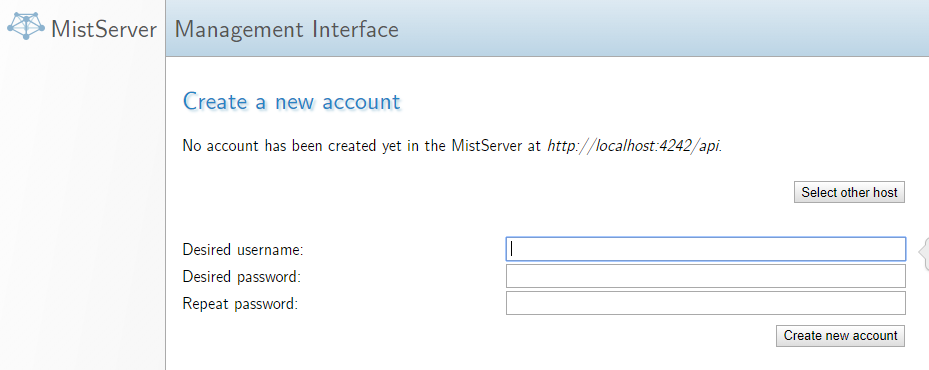
Open your browser and enter the local URL for the MistServer which should be http://localhost:4242
Enter your desired username and password – for simplicity we just used “test” for both username and password.
You don’t need to enable protocols a second time – when prompted – just press skip.
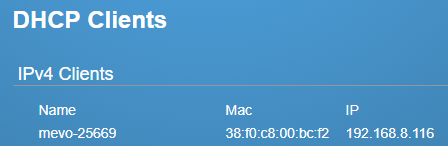
Go into your router settings to make a note of the IP address for your Mevo camera and the IP address of the computer running MistServer – you’ll need these shortly.
All routers are different but here’s a grab from ours showing the Mevo IP address.
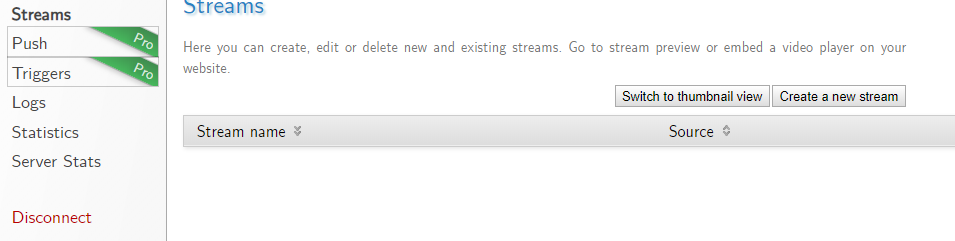
Inside the MistServer control interface you need to click on Streams then Create New Stream.
Enter the stream name as “test” and in source enter push:// followed by the IP address of your Mevo in the format show below.
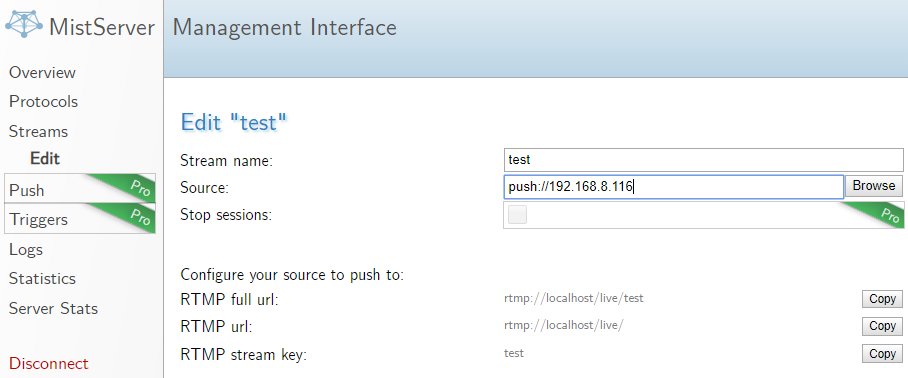
Scroll down and press Save and Preview
Open the Mevo app on you Android or iOS device. Press record and go to add RTMP option.
In the name field enter “test” (without the quote marks).
In the Stream URL enter rtmp:// followed by the IP address of the computer running MistServer then /live/ – typical example rtmp://192.168.1.65/live
In the Stream Key field enter “test” (without the quote marks).
Press the Go Live button at the top right of the Mevo app screen.
After a little while you should see the preview appearing in MistServer. Refresh the page if that doesn’t show up. Once you can see the preview in the MistServer interface you can safely close that page.
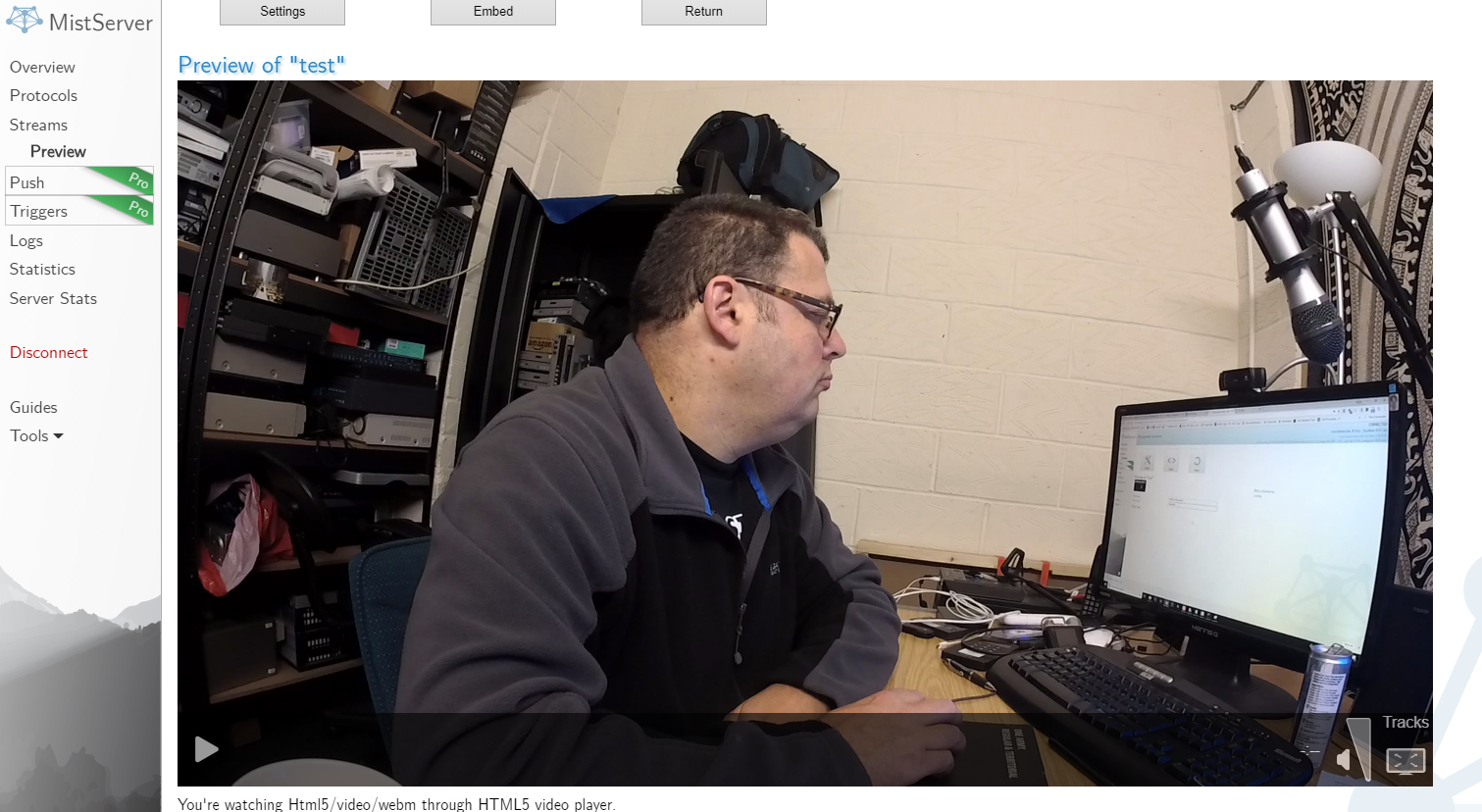
Setting up OBS Studio for Mevo
Note – you must have VLC Media Player from VideoLAN installed. The hack will not work without VLC.
Ideally you should have a good understanding of using OBS Studio. If you don’t then stop reading and watch some tutorials online before going any further.
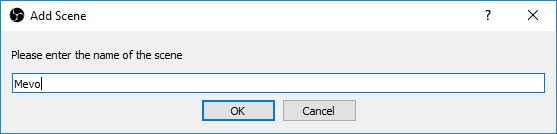
Open OBS and set up a profile that matches your desired Mevo output – either 720p/30 or 1080p/30. Add a new Scene – we called ours Mevo.
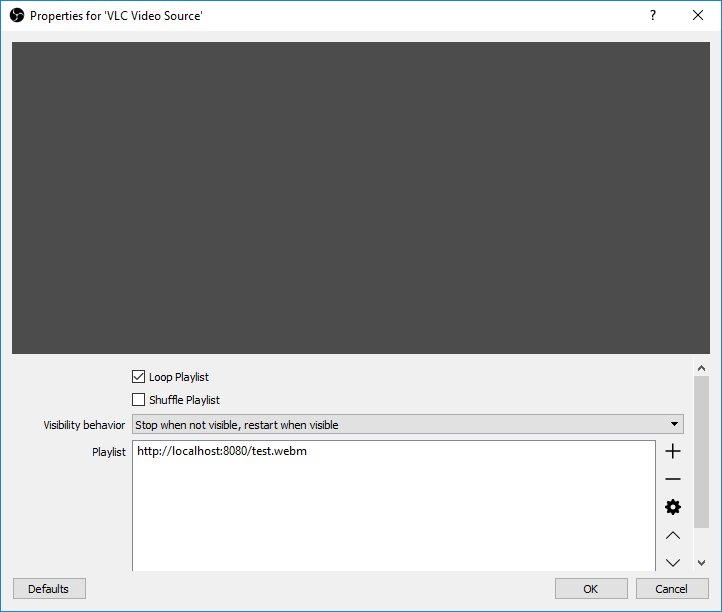
Add a VLC Video Source then press the + button and Add Path/URL. Enter the local stream URL for MistServer http://localhost:8080/test.webm and press OK.
You should now see the Mevo feed in OBS.
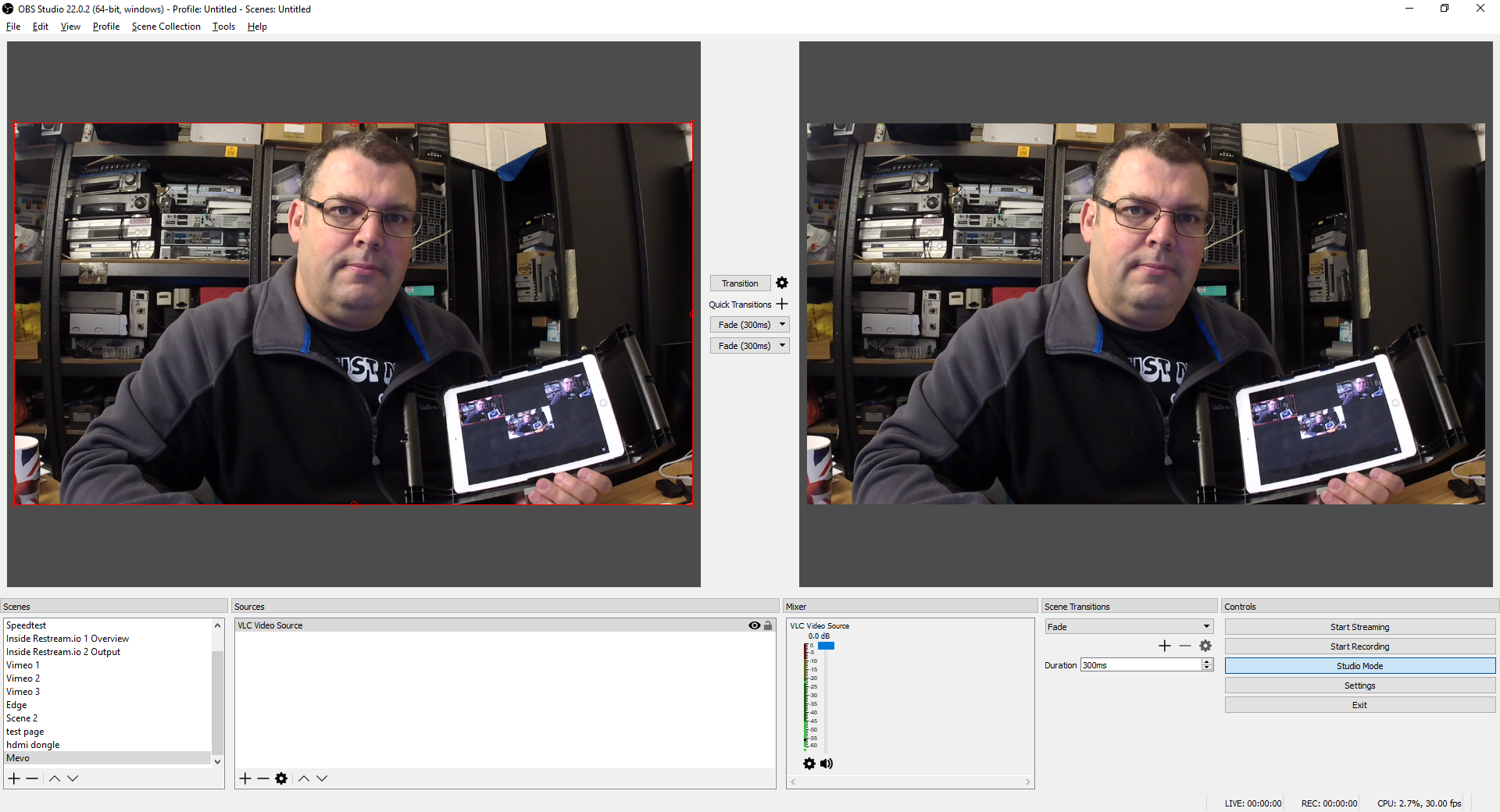
If the Mevo camera doesn’t show up in OBS Studio after a couple of seconds then close and re-open OBS.
Switching away from the Mevo Scene is quick and flawless. Switching back takes a little while resulting in a blanking out until the local feed resumes. The Mevo will be a couple of seconds behind real-time. Allow for the lag in your production. We found it easier to keep the Mevo as a bottom layer on other scenes such as full screen graphics or browser inputs – this avoids the blacking out when switching back.
You can add the Mevo feed as a browser Input instead of a VLC Source but the problem there is the audio doesn’t come in. VLC Source works fine.
Benefits of Mevo Camera OBS hack
Mevo is a closed system allowing you to switch camera views, stream and record but not much else unless you upgrade to a paid subscription.
OBS is a free,open source multi-camera switching and recording application for Windows, Mac and Linux. You can play out pre-recorded clips, show different camera and audio inputs as well as easily add titles and graphics.
This hack allows you to connect the Mevo camera to OBS vastly expanding the basic feature set of the device…..if you can make it work!
About us and what we do
Specialising in the things that most people find difficult or slightly off the beaten track in terms of video services we offer a broad range of technical video services.
Our Live streaming for business service covers everything from small events with one or two cameras through to large scale conferences with multiple cameras.
We process video evidence including disclosures for GDPR, legal investigations and official Inquiries. Many of the cases we’ve worked on been very high profile. We do not publish any details of the cases we work on but it’s fair to say that if you watch TV news in the UK then you’ve probably seen our work.
Our video conversion service originally started as video to DVD conversion but now includes videotape to MP4 for delivery as a digital download or on USB for SmartTV.
not work, fail on the mistcontroller
Hi Rene,
It can be tricky to get the Mistserver working at first. I’ve had it working fine on Windows 10 and Mac OSX on two different networks.
Sometimes just running the process again but refreshing the preview Page helps things spring into life.
Gavin
The issues I had were more of not reading things correctly. One was the stream key is the same as the stream name. Another is for the source ip I did find the IP but you should be able to whitelist all ips by using “push://” not recommended for security but can be done.
The other issue I had was VLC player had to be 2.2.8 to work with OBS which I found over on this thread
https://obsproject.com/forum/threads/vlc-video-source-not-showing-up.83746/
and the download link from that thread http://download.videolan.org/pub/videolan/vlc/2.2.8
and choose your OS accordingly. I restarted OBS and it worked. Hope this helps and thanks for this tutorial it was great
Thanks Will – good to know it worked for you.
Gavin
I followed your directions for RTMP and it worked nicely for me using local-rtmp-server utility for Mac. I’m able to send multiple streams (as long as each stream name is different) from multiple cameras (1 mevo and 2 iphones) into OBS using RTMP connections. The free mac utility link is https://github.com/sallar/mac-local-rtmp-server and it works great. To stream from iPhone I use LarixBroadcaster App with RTMP connections where you need to configure the stream with the Mac IP address.
Cesar
I followed the directions, but I could not get my Mevo to stream RTMP. It said that I didn’t have an internet connection. I ran the test through the app, and it said I did have connection and I can stream to Facebook. Any ideas?
Hi Cameron,
It could be either the RTMP server is mis-configured, the Mevo RTMP settings or an issue with your router/firewall settings. As I mentioned in the article – it’s rare to get success first time and it will probably be frustrating. I noticed a Mevo firmware update recently but haven’t used our Mevo with RTMP since then. It wouldn’t surprise me if that broke these little hacks (I have no idea if they could do that to be honest – RTMP is RTMP but maybe local IPs could be blocked). Good luck with it.
Gavin
Hello Gavin, I too did come to the same issue The Mevo app No Internet Connection. Could you please check for us from your end and see if you can still work this to get into RTMP.
Thanks
John
Thanks John,
I’ll bring the Mevo into the office and have a go. It wouldn’t surprise me if Vimeo devs found a way to block the hack. It might be a few days before I can give it a try.
Gavin
Hi John,
I’ve tested the Mevo to OBS method from scratch this morning. A fresh install of the Mevo app (Android), downloaded and ran the current MistServer 2.15 for Windows and followed setup the instructions above.
I had one false start – an RTMP error message from Mevo (I could see errors in the Mist server DOS window too). I stopped the Mevo and waited about 30 seconds then pressed GoLive again.
Working great over office WiFi straight into OBS as a VLC RTMP source.
Sometimes the Mist server might need a little while to get going – I couldn’t see the preview in the Mist browser windows (preview set to auto) but it did appear in OBS just fine.
There’s not much else I can add. There’s always the possibility the developers could block this functionality in future – although I think Vimeo might be satisfied with revenue from the product now and are perhaps less worried about 3rd party hacks. It’s not a great way to work but great fun to bend the rules for enthusiasts.
Hope this helps.
Gavin
Gavin
Thanks for the inputs. It works now
I’m also having the “no internet connection” message although I get good results from the network test from the Mevo and can view the feed on my phone while connected to wifi. I’ve tried the Mevo troubleshooting steps, tried both 2G & 5G wifi SSIDs, rebooted PC, Mevo, phone, recreated the stream in MistServer (Windows 10) but nothing has worked. Tried from iPhone and iPad. “Push” appears to be a “PRO” feature in MistServer; does it indeed work for the free version?
I get a “FAIL : mevo1|onFail ‘mevo1’: Stream open failed” messages in the Mist log. It doesn’t show up in OBS and I assumed that the “test.webm” in the OBS source URL should by “mevo1.webm” for my “mevo1” handle instead of your “test” handle.
Any other insights from those of you who got past this error/msg? Is it still working for you today?
Hi Chule,
Thanks for your comment. I just did a complete run through on a computer that hasn’t ran MistServer before with the free open source version. Fresh install of VLC (they’ve had a serious exploit recently). Current version of OBS. Current Mevo version on Android.
The term “Push” is seen in a couple of places in the MistServer documentation/feature set. In the context of what you’re trying to achieve it doesn’t need the Pro version and works perfectly in the free version.
Check that you’ve correctly entered the IP address of the Mevo itself in the MistServer “Source” dialogue box rather than the IP address of the host computer. Likewise in the Mevo RTMP settings you need the host computer IP.
Make sure the MistServer has been set up and running for a little while – only a minute or so before hitting record/stream in the Mevo app.
If all the settings are correct the Mevo should start streaming without a “No Internet” error.
It took a while for the MistServer preview to kick in initially but once that appeared it was dead easy for OBS to pickup to VLC feed – all working well today.
If you used “mevo1” instead of “test” throughout then it should be right.
As mentioned above I can’t offer tech support but happy to verify it’s still working from time to time. If and when it breaks I’ll update the article.
Gavin
Thanks Gavin! I was able to get it working using Studio Monitor and RTMPMiniServer but now am unable to get it a second time. I wonder if my router or Windows Defender is interfering. I do not get a preview in MistServer. I would be happy to use the browser feed as I do not want the audio fee from the Mevo. I’ll keep trying both ways. Thanks for checking this for me! This method is a jewel, if only I can get it repeatable and reliable.
Chule
Hi Chule,
Patience is the key sometimes – it may take a minute or two, or even a reboot for things to start working. What I can tell you is that LiveStream Studio works spot on every time with Mevo but costs $$$. The only reason I got started with MistServer was out of curiosity – the day RTMP functionality for Mevo was released I figured there must be a way to make it work locally & get the feed into OBS (or anything else really). I’m not a hacker but have just about enough knowledge to be borderline dangerous – hence gave it a shot. Quite satisfying to get it working yet well aware that the method (much like to Mevo itself) is a bit of a novelty rather than something to rely upon for real work.
Gavin
Ok I just figured out the problem. I had to ALLOW mistserver.exe (and possibly VLC) in Windows Defender Firewall Rules. Start, Control Panel, System and Security, Windows Defender Firewall, Inbound/Outbound Rules.
I have ~3 sec delay with no other issues.
Good to know you got there in the end. We run Defender but haven’t had to change any settings here.
Hi,
Thanks for the helpful info. I was wondering whether you have any advise on the simplest, affordable but most effective way to live stream 24hr news. I am a broadcast journalist with little technical knowledge and i wish to start a news channel with on-location live feeds . I looked at the video switchers like Tricaster’s TC1 but the prices are quiet prohibitive and i heard that the mevo can only communicate with other devices that are on the same internet connection
Regards
Reg
Hi Reg,
Thank you for your question. Mevo isn’t intended for 24/7 work. It’s a capable device but not a professional piece of kit. Hardware solutions are expensive but they do tend to keep working. Probably best to speak to a streaming equipment consultant. In the UK we recommend Martin Kay of ZEN Computer Services. In the USA you may want to speak to both Tom Sinclair at Eastern Shore Broadcasting and Eric Pratt at US Broadcast Distribution. Google them – all good people.
Gavin
Hi Gavin. Thanks for your posts. I have a quick question. I am looking to use the Mevo Plus to live stream church services. Would like to be able to use the local RTMP server with OBS in order to add different overlay graphics. My question is this. What specs do you recommend for a pc that would run the RTMP server and OBS? I am looking at a couple gaming laptops that have either gtx1080 or 1680 video card, 8GB ram , SSD, Ryzen 5 CPU.
Thanks,
Scott C.
Hi Scott,
Thanks for your question. You can try it but I wouldn’t want to rely on what is essentially an unsupported hack. You’re also getting double compression – the Mevo compresses the image then sends it via RTMP. It’s then decompressed, processed and recompressed by OBS. Mevo are no longer tied into Vimeo (or Live Stream Studio). The Mevo Plus can’t be far off end of life now. It’s likely that whatever comes next from Mevo will be better in many ways and has no reason to be tied into LSS.
I consider the Mevo to be a hobby/fun device. I know lots of users enjoy it for weekly church services etc without too much trouble. It needs a ton of light plus some more light (and then more light) to work well. If you’re getting a PC anyway I’d look at other options. We’ve just picked up an ATEM Mini for mobile work. Amazing capability for the price 4 x HDMI cameras, hardware control panel and a capture device all in one. Well worth a look if you have a couple of old HDMI based cameras around.
The PC spec is fine – an RTX16XX card is a bit better because it has NVENC 2 which is higher quality in terms of H264 encoding (similar to x264). Get a 3rd gen Ryzen – the 2nd gen are fast (we have a monster 2700x edit machine) but the 3rd gen have improved architecture and can throw date around easier – take a look at what the vMix guys are recommending for build ideas.
Gavin
Hey Gavin!
This post was super useful as we weren’t sure there was a way to get Mevo to communicate with OBS. I followed your tutorial but am running into to some issues with the connection between Mist and OBS. I can get it to run fine for ~30 seconds but thing it freezes. Switching scenes seems to wake it back up after a few seconds but then the issues occurs again.
Do you have any suggestions? We’re using the free version of Mist on an iMac with consistent fiber internet
Thanks,
Ryan
Hi Ryan,
I’m pleased it was helpful. I have some questions that may lead you to resolving the issue. Also check out the other method linked in the post. It may be less resource hungry and more reliable than Mist.
Are you on a fully wired connection (Mist Server) or WiFi? If you’re on WiFi then it could be struggling to move the data around.
How fast/recent is the iMac? OBS seems to hammer some of the older Mac OS devices – especially those without a dedicated GPU
Are you running Mist Server on the same machine as OBS or a different computer? Running it on the same machine might be pushing your luck.
Gabin
Thanks Gavin!
I’ll try the trial of the other option as well.
I’m running the Mist Server off Wifi with 90Mbps down, 40Mbps up, and 30ms ping.
The iMac is a refurbished 2013 running iOS Mojave.
Processor 3.2 GHz Intel Core i5
Memory 32 GB 1600 MHz DDR3
Graphics NVIDIA GeForce GT 755M 1024 MB
I’m currently running them off the same machine but could try running the server off a laptop sometime next week which would allow me to run a wired connection.
The laptop I would be using wouldn’t be particularly impressive though, would that be an issue?
Thanks again!
Ryan
Wired Ethernet may well resolve the issue. Try it before anything else.
A separate machine running Mist is desirable but probably not essential. It’s fairly light – no transcoding just re-wrapping a 4mbps data stream.
The Mac is borderline suitable for OBS. Make certain you’re using NVENC encoding.
Again – avoid WiFi wherever possible. It really does affect data throughput. Video from the Mevo requires continuous sustained data moving through the router with no retries or buffering. Likewise the Mist server needs full, uninterrupted data to work properly. If you can hardwire the Mevo itself that will also work.
Hi! This is very informative. Thank you very much! We were able to connect Mevo to OBS. However, we are having problems during livestream probably because of the network connection. Are you experiencing delay in the livestream with the Mevo connected?
Hi Yang – I’m pleased you found the article useful. The RTMP workaround for Mevo + OBS has inherent delays and network overheads that could affect your stream performance. Even Livestream Studio has some local input delay with native support for Mevo. Ethernet helps reduce local lag – avoid WiFi where possible. As mentioned in my article – Mevo+OBS is not an elegant solution/ It may (or may not) not work well. Gavin
This was so helpful, Thank you! I lost the stream a few times (probably because it’s over wifi) but overall it worked really well.
Good to know Tom. Thank you for letting me know.
Gavin
Hi.This is Kye Sunge, Korean.
I’m in trouble of mevo and mistserver.
I dont know what is a problem.
when rtmp, on meve
==> there was a problem with the trmp destination. Mevo cant complete this action because of an issue with rtmp provider. Check with your streaming provider for any issues.
also, on mist server, on streming menu. staus Unavailable.
I was followed your how. but I cant. please help me.
Hi Kye,
Thanks for your comment. I recommend you start again from scratch checking every detail is correct. It’s very important to check the IP addresses are correct and that you have the correct details entered at every stage. I hope you get it working.
Please note: I don’t offer tech support *** This hack is a totally unsupported and might not work ***
Thanks! now Working!! It is awesome! great!!!!!
Could I introduce your way(your youtube and you website) on my youtube video?
Hi Kye,
Thanks for your feedback. Sure thing with a plug on YouTube. Send me a link when it’s up!
Gavin
This was great and it worked exactly as you outlined. The only issue I ran into was when I used the Mevo for video stream and then added the audio in OBS as a separate input, they aren’t in sync. Given we are streaming this live and I can’t fix the sync post production, I’m wondering if I will have to continue to use the Mevo microphone (which isn’t good) in order to keep things in sync.
Any suggestions, I can’t imagine this is a unique issue.
Thanks again for this great post.
Hi Dan,
One way is to route the audio through the Mevo itself. Either with the Boost unit or an OTG hub cable with a USB audio adapter. That way it’ll land in sync.
You can set a delay with OBS – not sure what the limit is. Lindy (and others) sell analogue audio delay gadgets but they tend to be milliseconds rather than several seconds.
Gavin
Hey Gavin!
I keep getting this following message:
“There Was a Problem With the RTMP Destination | Mevo can’t complete this action because of an issue with the RTMP provider. Check with your streaming provider for any issues.”
Can you help us out?
Coach
Hi Coach,
The error message you’ve seen is likely because of a syntax error in the server settings. It’s vitally important to check you are correctly entering the correct information in the correct area at every step of the process.
My recommendation is to begin by making a note of the IP address of your Mevo camera and the computer hosting the Mist Server.
Important – if you reboot either device or your router then the IP addresses could change. You’ll need to check them again and make sure they are correct.
Once you have checked and verified the IP addresses follow the MiST Server setup process again from scratch including the the VLC settings. It does take a little time for the server to start working. Usually under a minute. If you’ve made a mistake with the server settings and had some failed attempts to get it working it is best to reboot your computer before trying again.
Note: I’m planning a major update to this article. There’s a new app currently in Beta by Michael Garanin.
The app is called GoPro2OBS and is a much neater solution than MiST server and itis cheaper than RTMP MiniServer.
https://www.manchestervideo.com/2020/03/31/mevo-and-obs-studio-working-together-easy-method-for-2020/
It works and has very low latency (compared to MiST server).
Gavin
Great guide, shared it on my guide as well that focuses on connecting your Mevo Camera to a Local RTMP Server on a Mac / macOS.
Thanks Dennis – I’ve added a link for Mac users in the article.
Gavin
hi what i can do? its working on mistserver but i cant get it into obs
Hi Mario,
Thank you for your question. If you can see the Mevo video stream in MiST Server then you are half-way there. My advice is to check that VLC can play the stream. First make sure that VLC is installed and up to date. Update OBS to the current version.
In VLC click the first menu item ‘Media’ then ‘Open Network Stream’
Enter the MiST Server URL in the dialogue box http://localhost:8080/test.webm
Note: You must carefully check the URL is typed in correctly or it will not work if any letter, number or symbol is incorrect.
After entering the URL please click ‘Play’
After a short pause this should show the Mevo footage via MiST Server in VLC. If it does then you can close VLC and follow the instruction provided for OBS in the article which is to open a VLC source.
If you cannot see the Mevo footage in OBS then go back and re-check the URL is entered correctly.
Gavin
Finally I opened on obs, but having mistserver open and stream from the mevo cam, if I close them obs scene goes away too. I havent try what you said, but I will, thank you so much,
WOW! Thank you!!!! MistServer was super easy to set up. After a lot of hair tearing and grinding teeth struggling to get my two Mevo Plus to start up reliably with ActionCam2PC/GoPro2OBS (the new “easy” solution), I tried setting up MistServer. This was truly a piece of cake! Now I have both cameras working 100% reliably with OBS! I can power the cameras off, I can restart any Mevo, I can reboot. All comes up nicely again. I was unable to achieve this with ActionCam2PC after spending maybe 10 hours on tinkering. Setting up MistServer and getting the cameras to preview in MistServer took 15 minutes. Getting OBS configured took 5 minutes….
So I recommend everybody to avoid a lot of grief and wasted time. Install MistServer with these instructions. Then configure OBS, with these instructions https://www.jenders.com/2020/04/16/how-to-connect-a-mevo-camera-to-obs/ and you’re golden. However, the latter instructions has one small error: You need to disable “Restart source when playback becomes active”, otherwise it won’t work right – at least not with multiple Mevos.
Cheers!
Hi, it didn’t worked for me 🙁 I tried several times already, no preview from the MistServer, and from my Mevo app it says “There was a problem with the RTMP destination. Mevo can’t complete this action because of an issue with the RTMP provider. Check with your streaming provider for any issues.”
I tried Mevo’s troubleshooting, it says needs to verify my connections with social media and network/internet connections etc. But didn’t work as well. Let me know If you have any suggestions thanks
Hi Anj,
Thanks for your comment. Check syntax for every single text entry and IP address. Any mistake at all and it won’t work.
Regards
Gavin
Hi,
I’m trying to design a setup for a research lab in a french university, and i wanted to use wireless cameras such as mevo starts, but I wanted to get the stream of each cam separately (in OBS or Streamlabs) to then record a “mosaic-style” videos (with the images from all streams aside each other) or each video stream in separate files
I’ll work on a local network, without streaming to the web
And i’m sorry but I don’t understand if your tutorial about RTMP could apply to a multicam setup, allowing me to get several mevo start cameras, connected wirelessly, as separate sources in OBS
Thanks a lot in advance and wish you the best !
Emilien
Hi Emilien,
A lot has happened with Mevo since I originally wrote this article – I’ll amend it shortly.
Mevo Start now has at least 2 useful wireless options.
Wireless Webcam app is available from Mevo directly.
However, what’s more useful for OBS is NDI HX.
If you install NDI Tools from Newtek and the NDI plug-in for OBS you will be able to bring each camera in over the network as an NDI source and make a multiview style layout.
Mevo also supports SRT so you could bring cameras in from anywhere in the world (with a short latency).
Regards,
Gavin